
TechScan AI is a Chrome extension that shows what a website is built with and checks its SEO, security settings, and page weight. It detects 700+ technologies across 23 categories, shows the evidence behind each detection, and offers a private AI assistant on supported computers. You can inspect a site without its admin login.
TL;DR: TechScan AI is a Chrome extension that identifies a website’s tech stack and checks SEO, security, and page weight.
Detect: 700+ technologies across 23 categories, with confidence scores and supporting evidence.
Check: Site details, 16 SEO checks, 13 security checks, and 12 page-weight checks.
Use: Install it from the Chrome Web Store, open a website, and click the extension. No account needed. CSV/JSON exports and optional on-device AI are available on supported computers.
TechScan AI features at a glance
| Feature | What TechScan AI provides |
|---|---|
| Technology detection | 700+ technologies across 23 categories |
| CMS and ecommerce | WordPress, Shopify and other detectable platforms |
| Themes, plugins and apps | Recognize components exposed by WordPress and Shopify websites |
| Frameworks and services | JavaScript libraries, analytics, payments, hosting and CDNs |
| Detection details | Confidence scores, evidence, implied labels and versions when available |
| Site details | Titles, descriptions, canonical URLs, robots, language and resources |
| Security | 13 checks, A+ to F grades and recommended actions |
| Page Weight | 12 checks for page resources, requests and DOM size, not speed |
| SEO | 16 on-page checks for metadata, schema, images, links and more |
| On-device AI | Gemini Nano reviews on compatible desktop Chrome devices |
| Search and re-scan | Filter categories, search detected technologies and refresh scans |
| Export | Save results as CSV or JSON |
| Appearance | Light, dark and system themes |
| Privacy and access | Local analysis; no TechScan AI account or API key required |
How to install and use TechScan AI
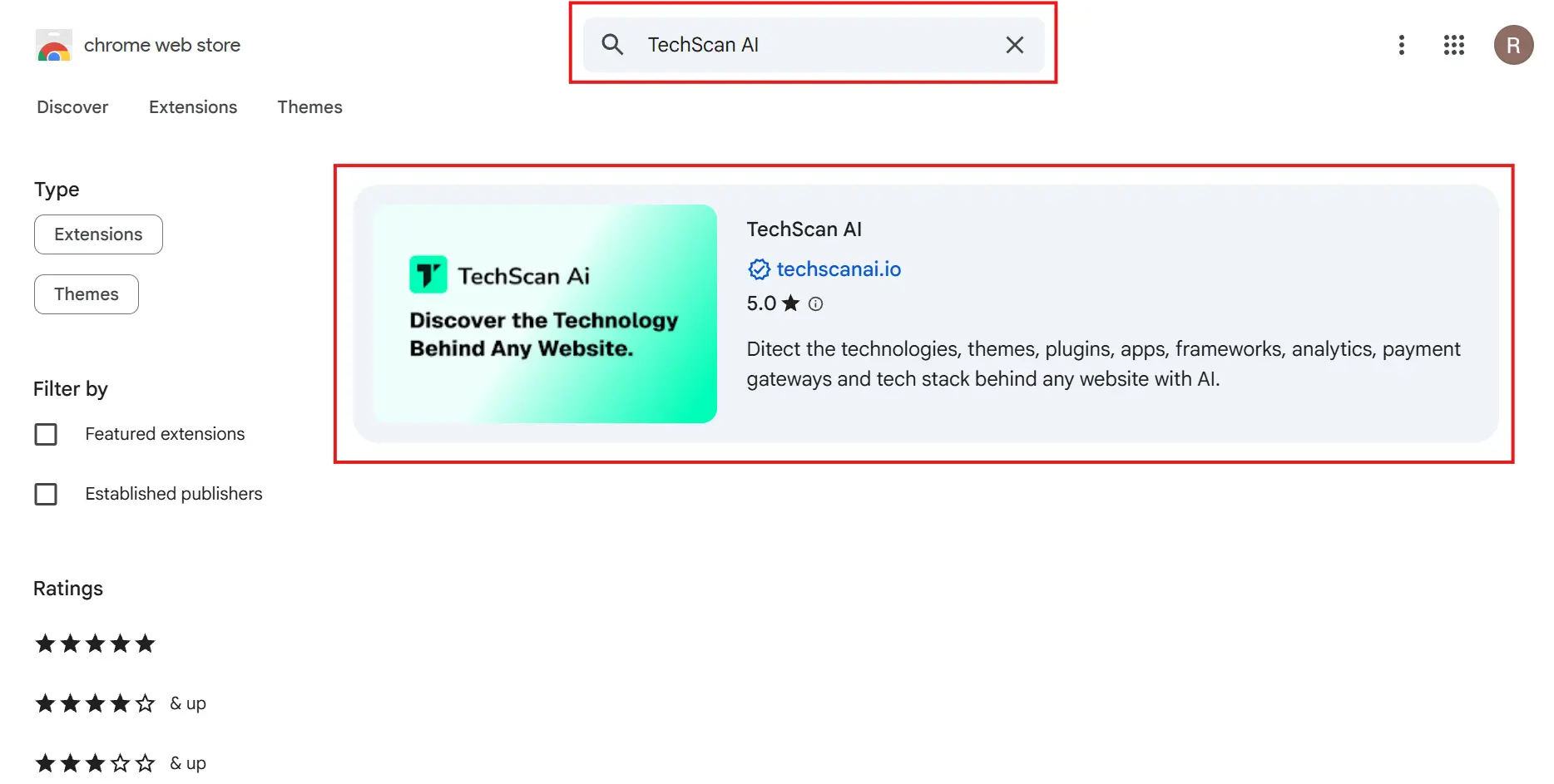
Step 01: Find TechScan AI in the Chrome Web Store
Go to the TechScan AI Chrome Web Store page, or search for TechScan AI in the store and open its listing.
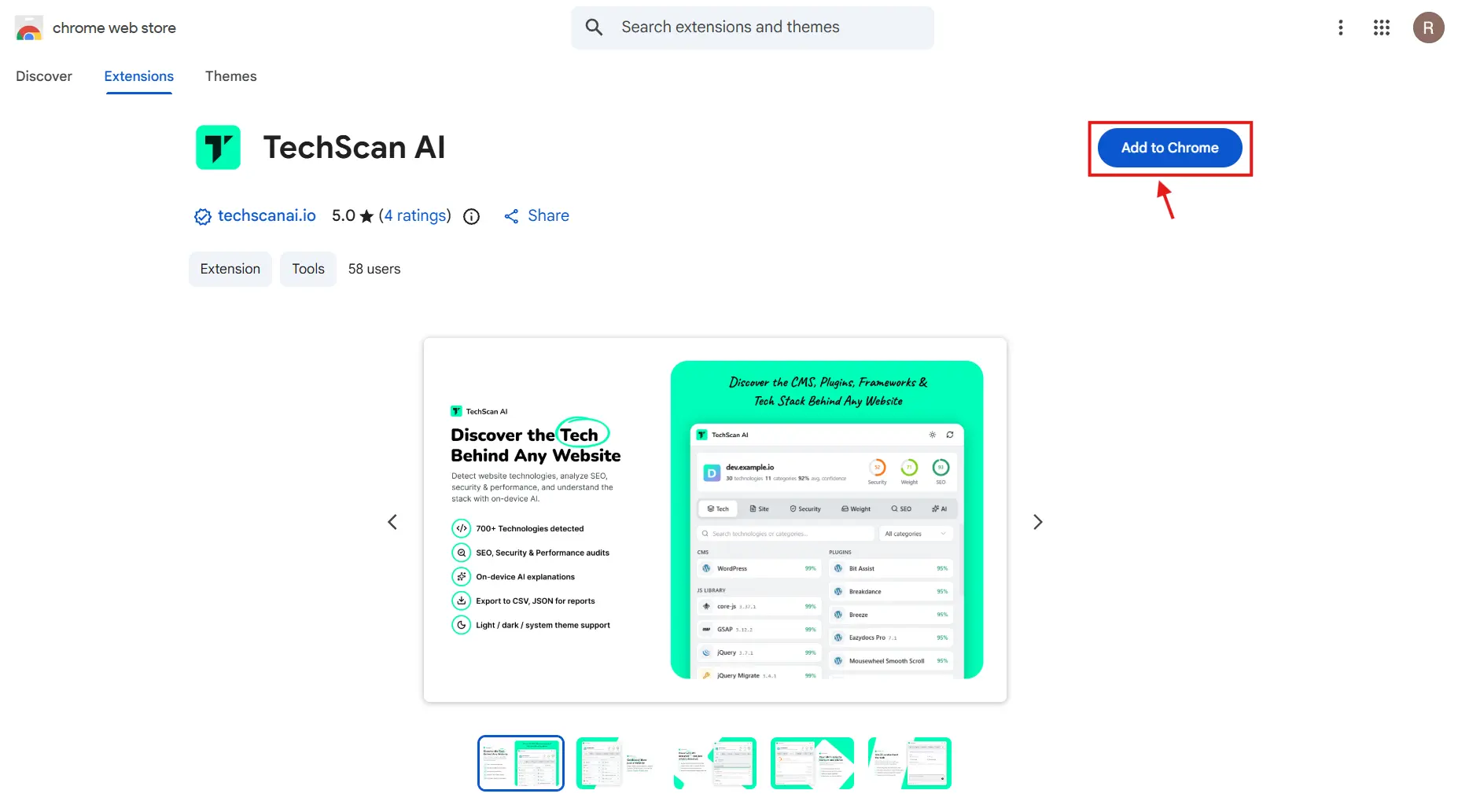
Step 02: Click Add to Chrome
On the extension page, click the Add to Chrome button.
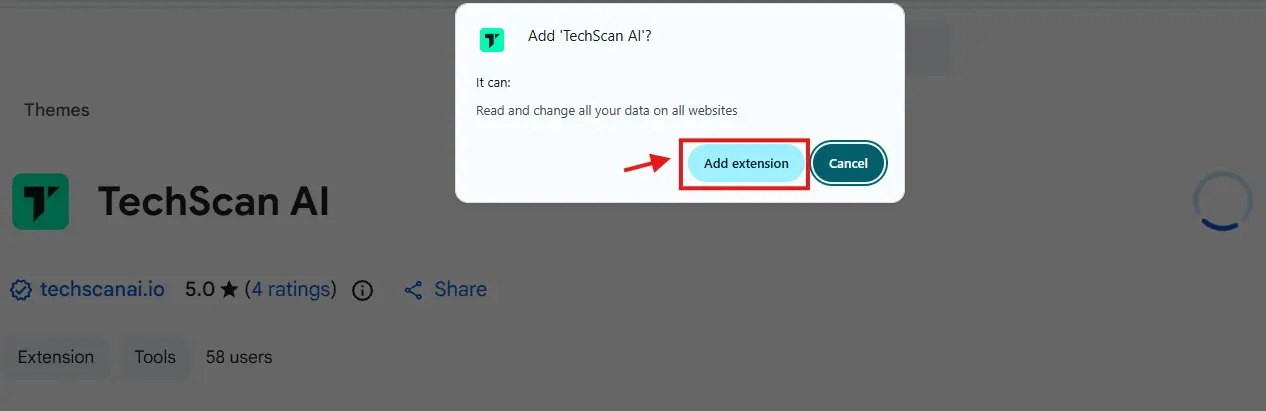
Step 03: Confirm the installation
Chrome will show the permissions requested by TechScan AI. Review them, then click Add extension to proceed.
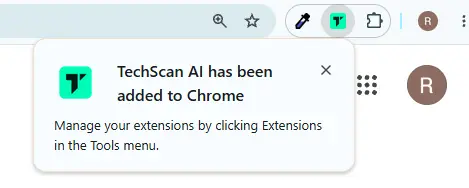
Step 04: Check that TechScan AI was added
Look for the “TechScan AI has been added to Chrome” message. You can pin the extension from Chrome’s Extensions menu for easier access.
Step 05: Open the website you want to inspect
Open the website you want to analyze in Chrome and keep that tab active. You do not need access to the website’s admin dashboard.
Step 06: Launch TechScan AI and check the page
If TechScan AI is not pinned, click Chrome’s Extensions (puzzle-piece) icon in the top-right corner, then select TechScan AI from the list.
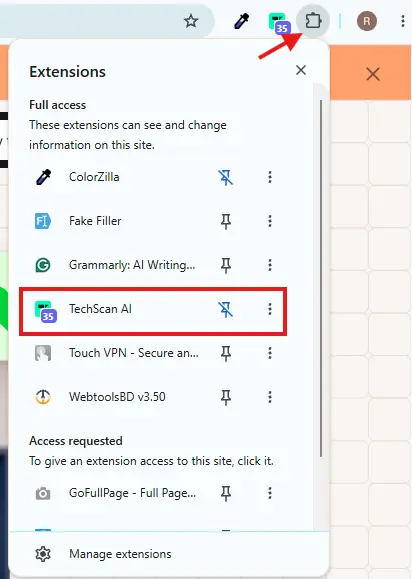
If TechScan AI is pinned, simply click its icon in the Chrome toolbar.
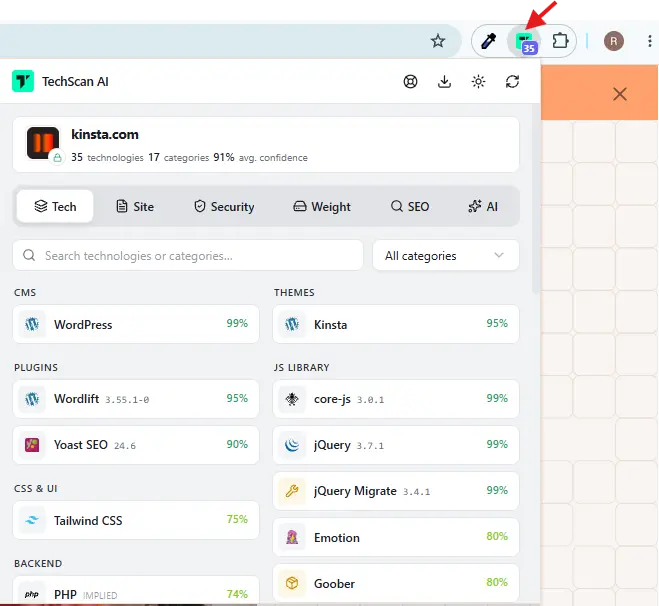
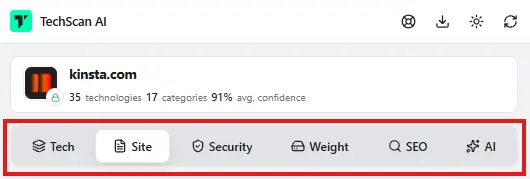
The extension opens the analysis for your current page. The Tech tab lists detected technologies, categories and confidence scores, with versions where available. Switch to Site, Security, Weight, SEO or the optional AI tab for other findings. You can search or filter the results, re-scan, and export CSV or JSON from the popup.
TechScan AI features: what each tab shows
TechScan AI combines a website technology detector with five other views. Each tab answers a different question about the page you have open.
Tech: Which technologies power this website?
The Tech tab groups detected software into CMS, WordPress themes and plugins, Shopify apps, JavaScript, analytics, hosting, payments, CDNs and more. Search the results, filter by category, and check confidence scores or versions where available.
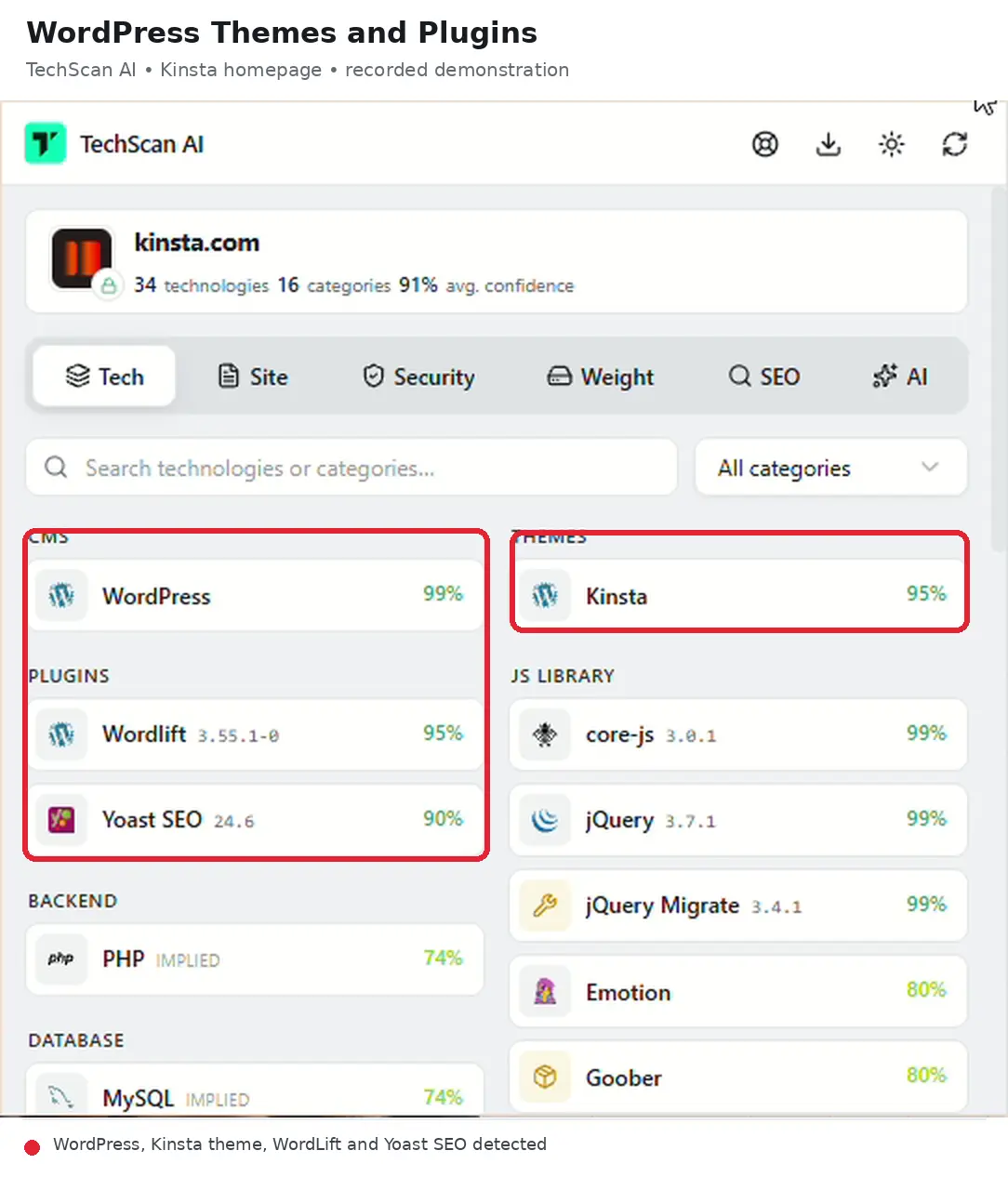
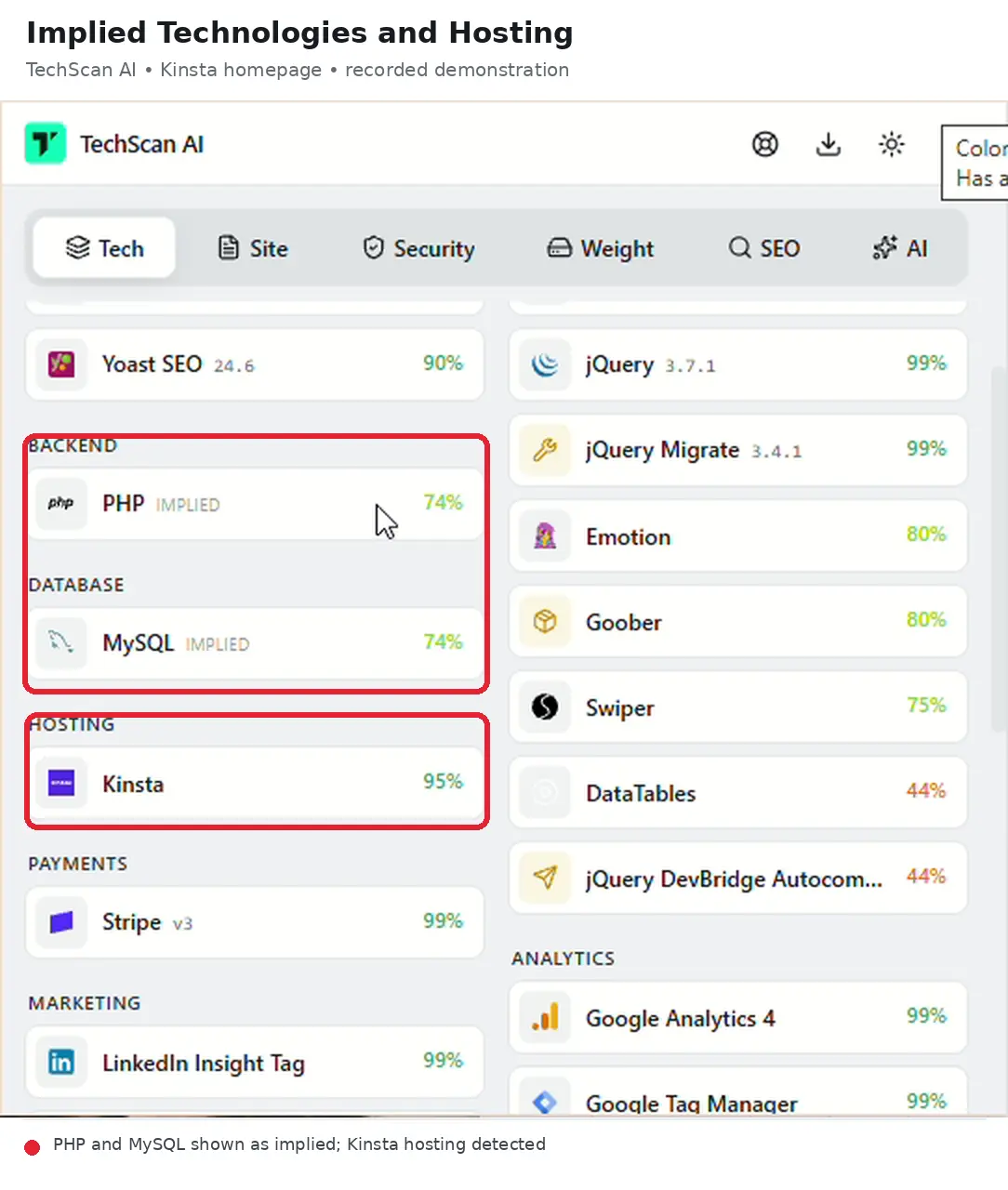
Detection uses clues visible to the browser, including scripts, markup, loaded files and headers. It also labels implied technologies, distinguishing an inference from a directly observed result.
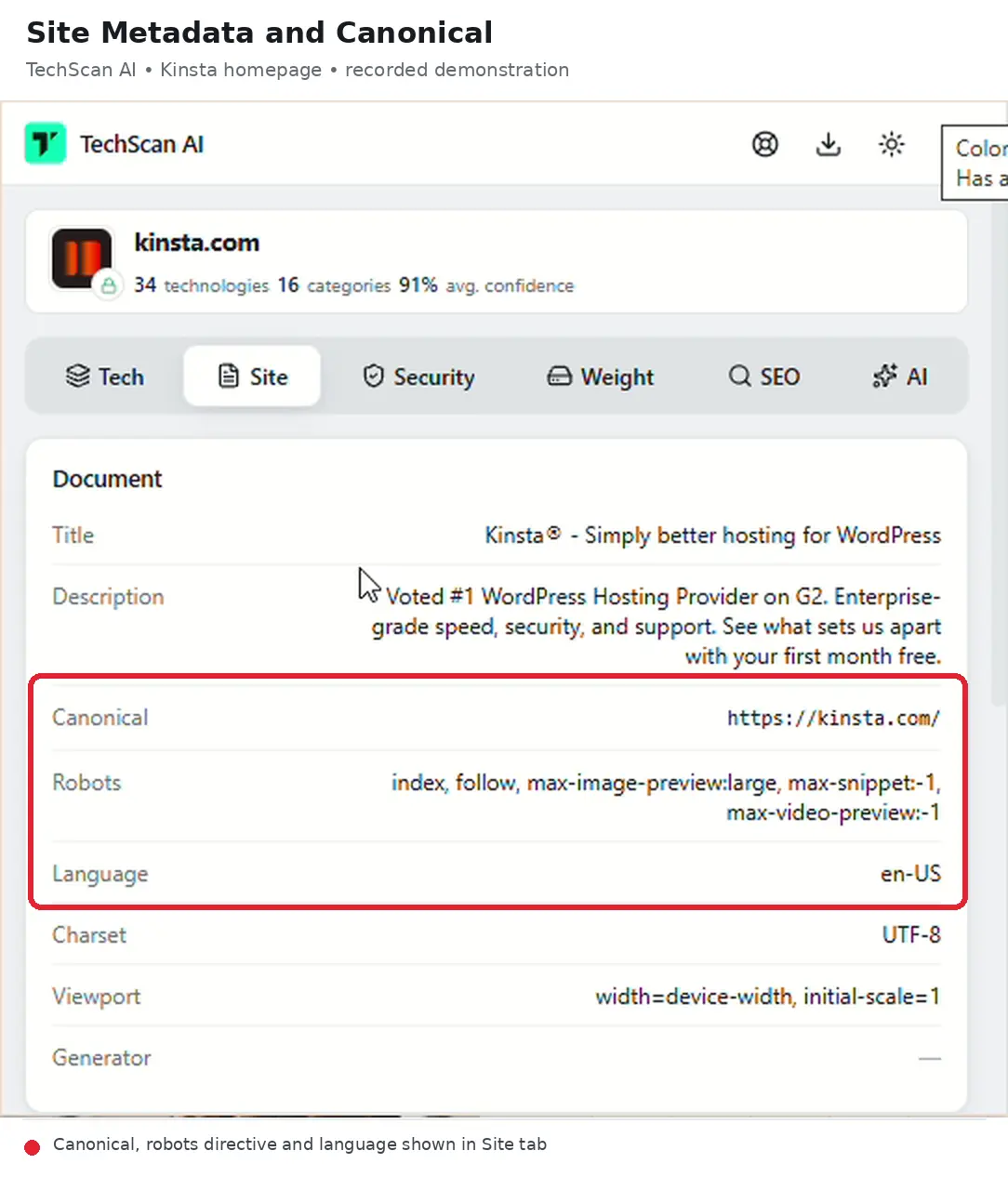
Site: What information does the page expose?
The Site tab collects the title, meta description, canonical URL, robots directives, language and other document details. It also counts scripts, stylesheets, images, links, forms and cookies for a useful starting point in a website audit.
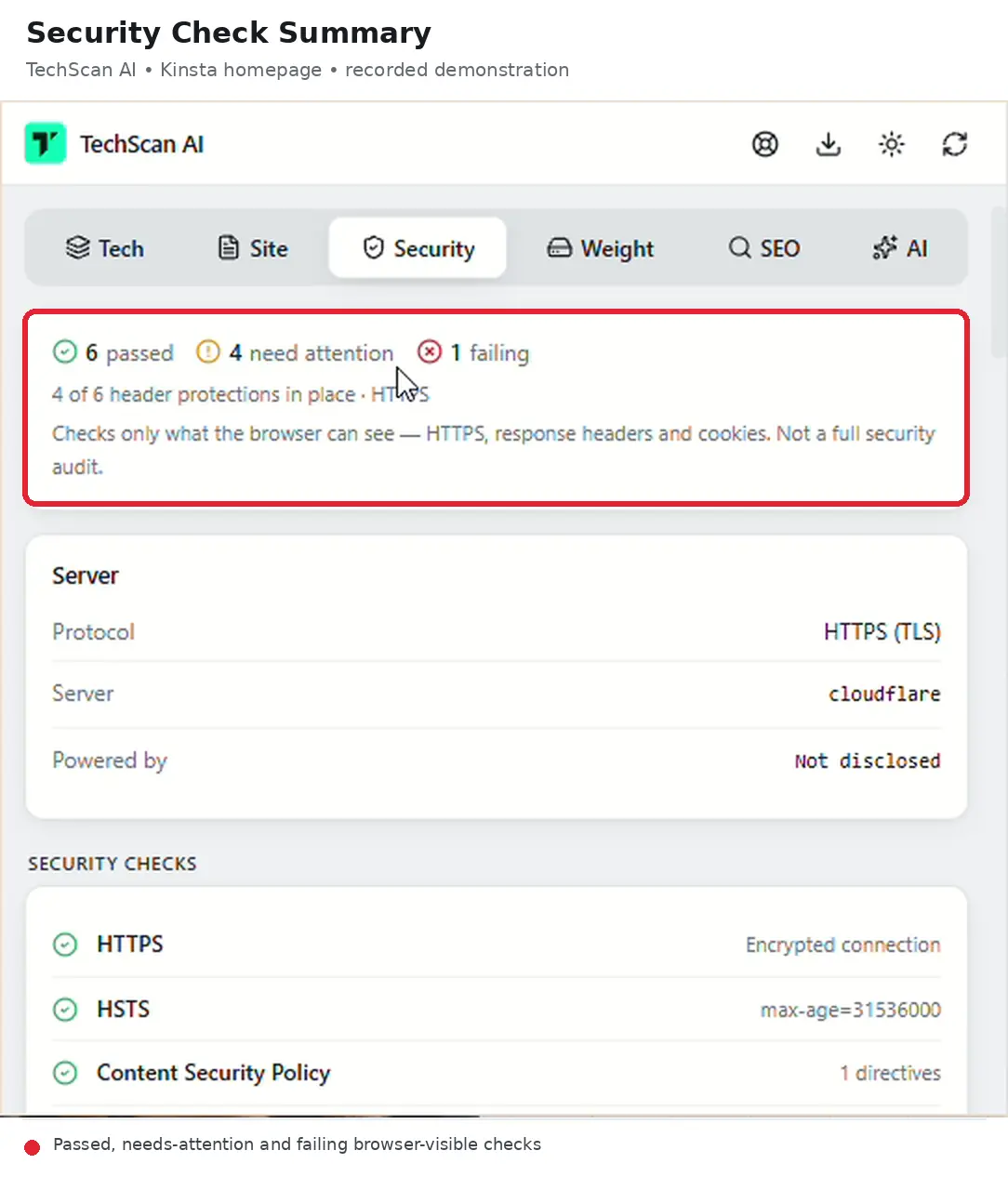
Security: Which browser-visible protections are configured?
The Security report runs 13 checks covering HTTPS, security headers, cookie attributes and exposed server details. It separates passes, warnings and failures, assigns an A+ to F grade and recommends what to review. It is not a penetration test.
Weight: Which files make the page heavy?
The Weight report runs 12 checks covering JavaScript, CSS, images, fonts, network requests and DOM size. It assigns an A+ to F grade and suggests improvements. It measures page weight, not Core Web Vitals or perceived speed; if cross-origin file sizes are hidden, it flags the incomplete breakdown.
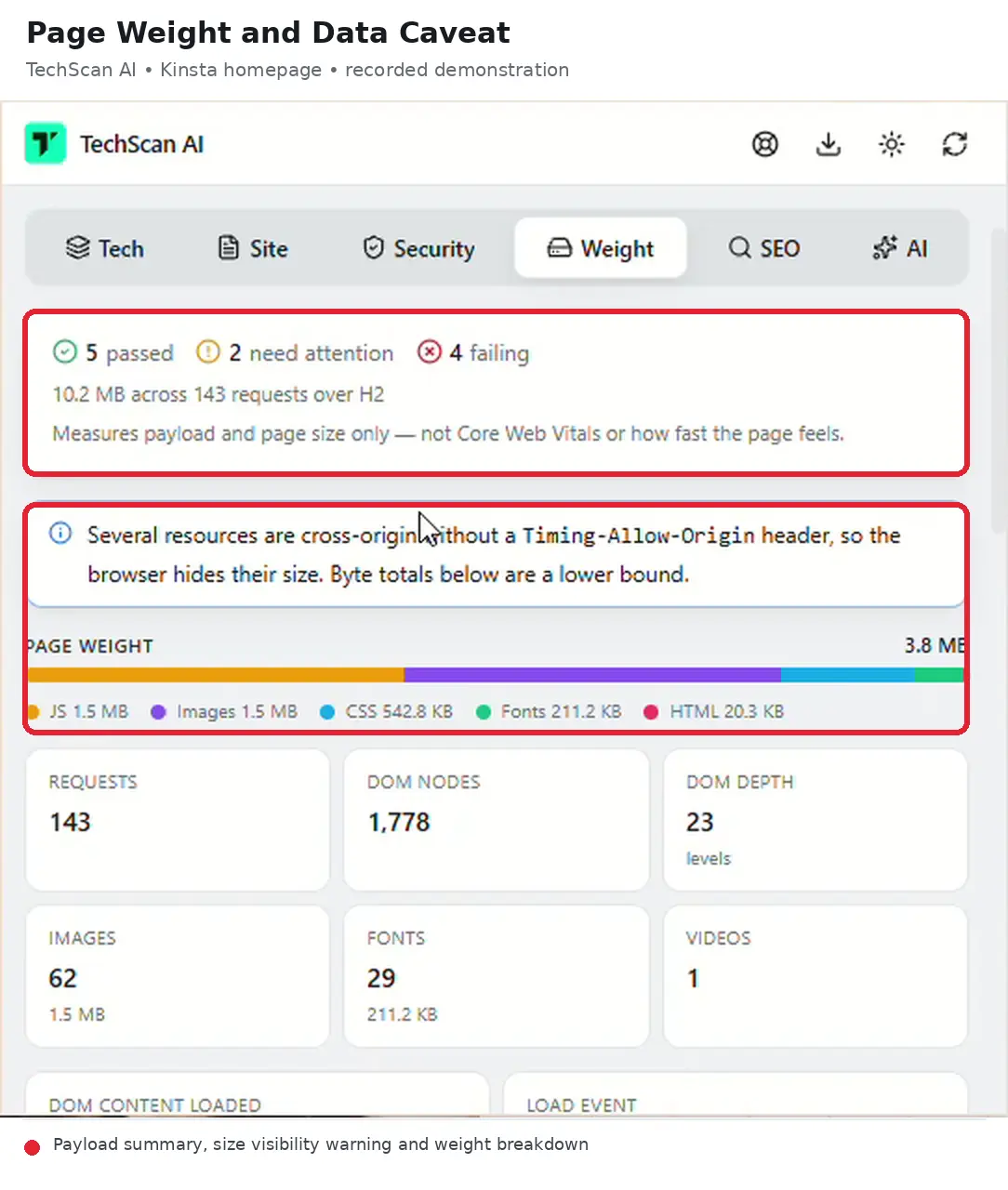
SEO: What on-page issues need attention?
The SEO report runs 16 checks for titles, descriptions, headings, canonical tags, robots directives, image alt text, links, schema markup, social tags and hreflang. See an A+ to F grade with individual findings you can act on.
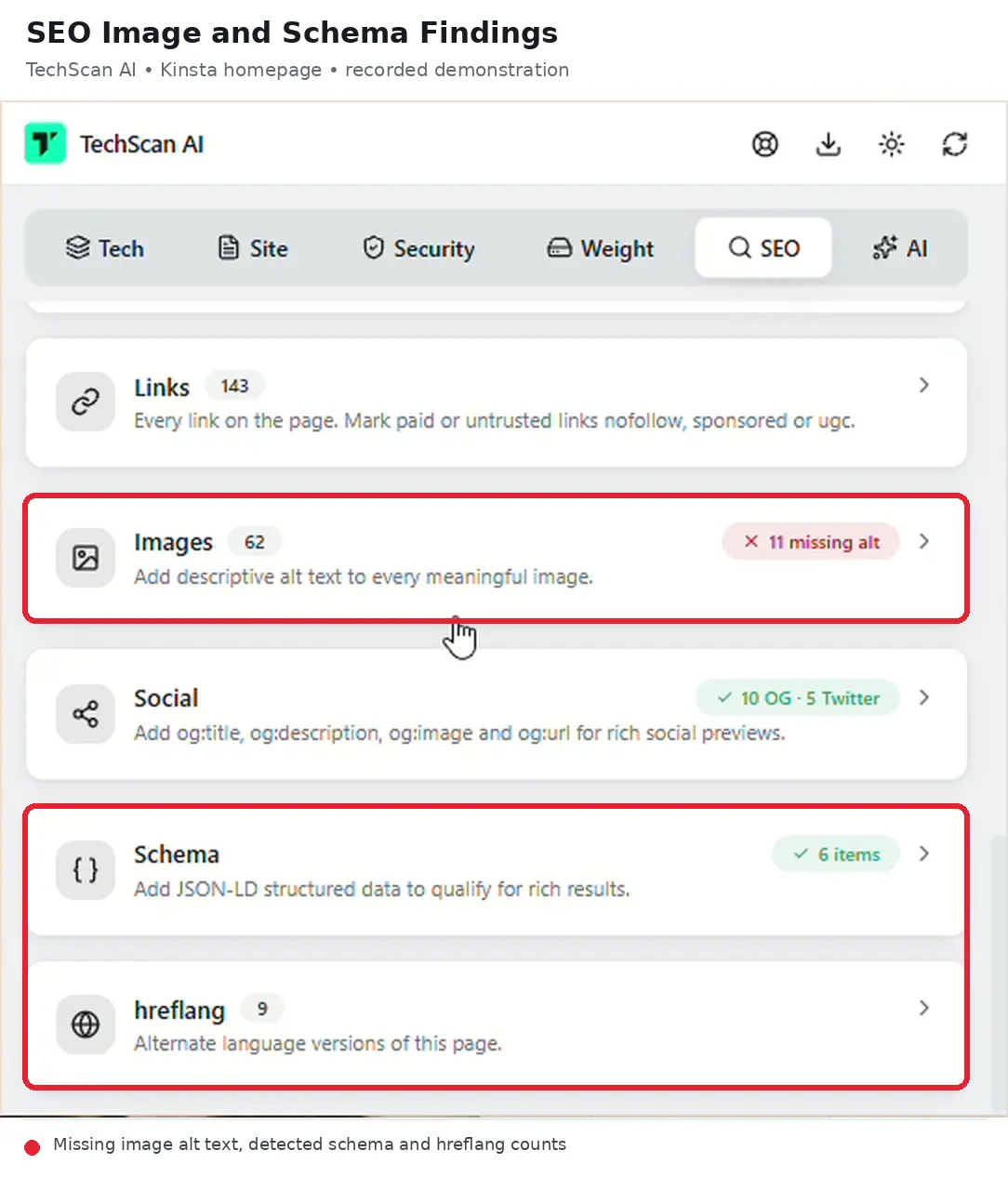
AI: Can it explain these findings?
With supported desktop Chrome hardware, the AI tab uses Gemini Nano on-device. Choose Tech Stack Summary, SEO Review, Security Review or Page Weight Review, or ask about the current page. You can use the other reports without enabling AI.
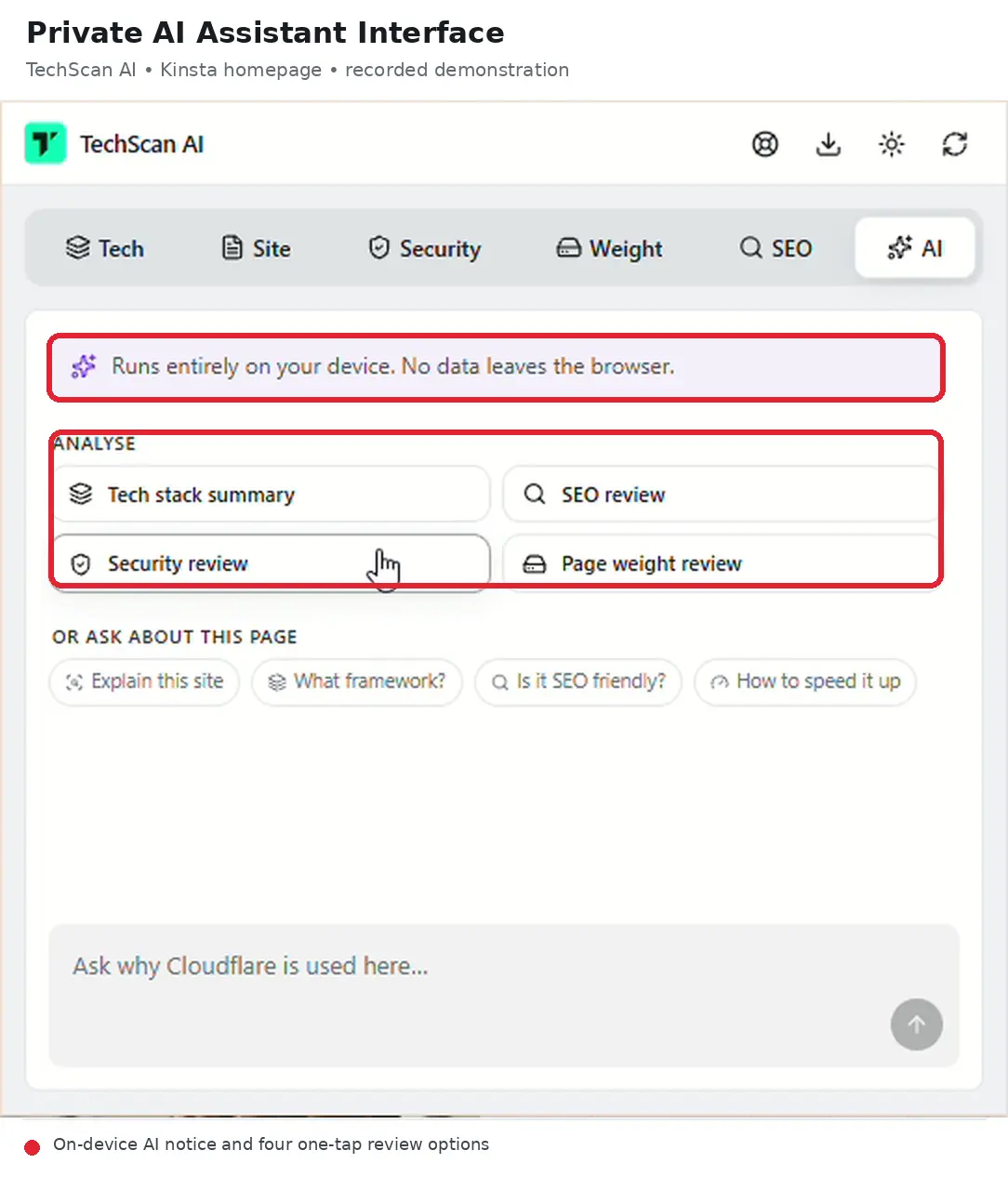
Exports and appearance
Export analysis results as CSV or JSON, re-scan after a change, and switch between light, dark and system themes. CSV is handy for spreadsheets; JSON retains the structured findings.
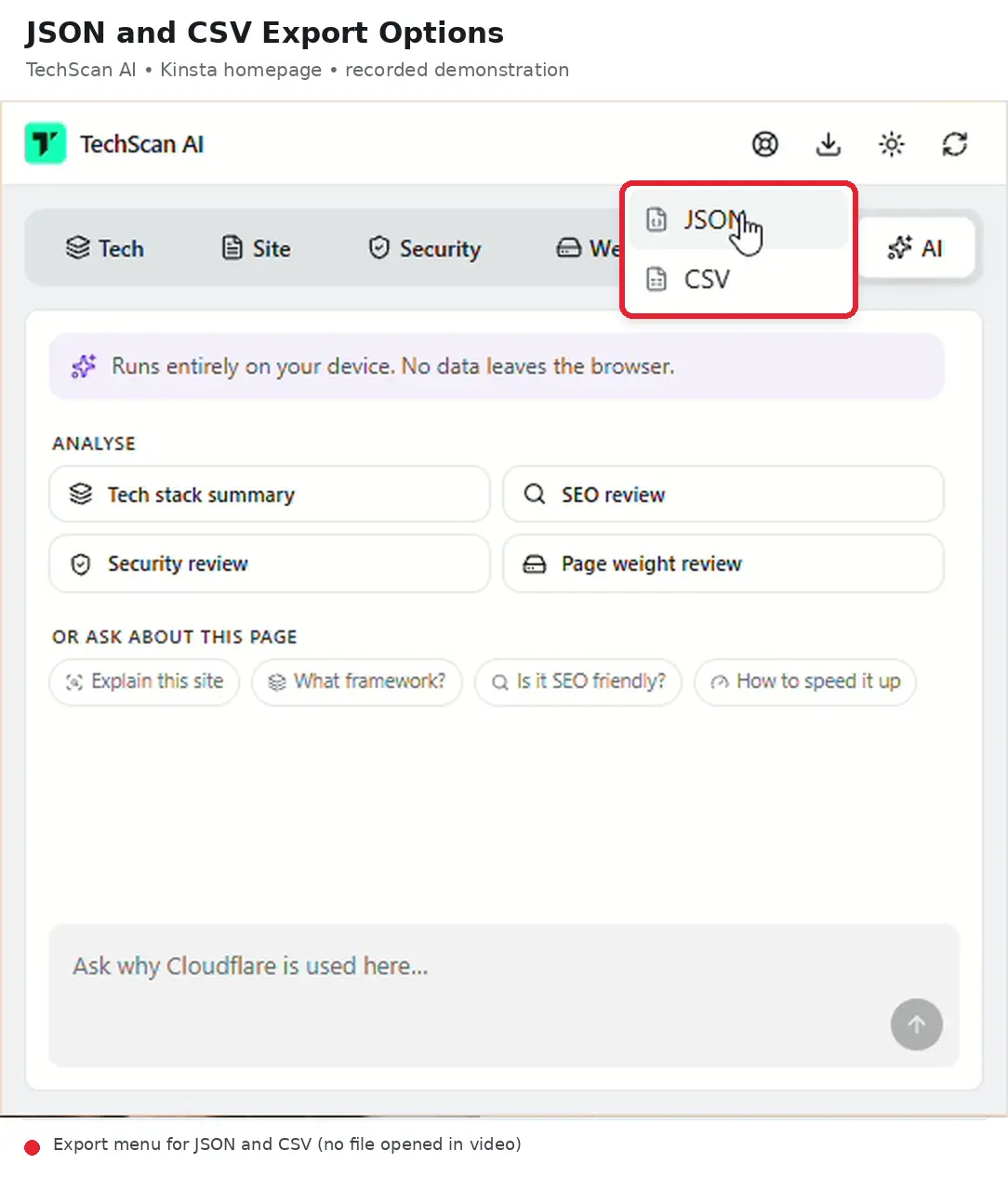
TechScan AI on Kinsta.com: a real example
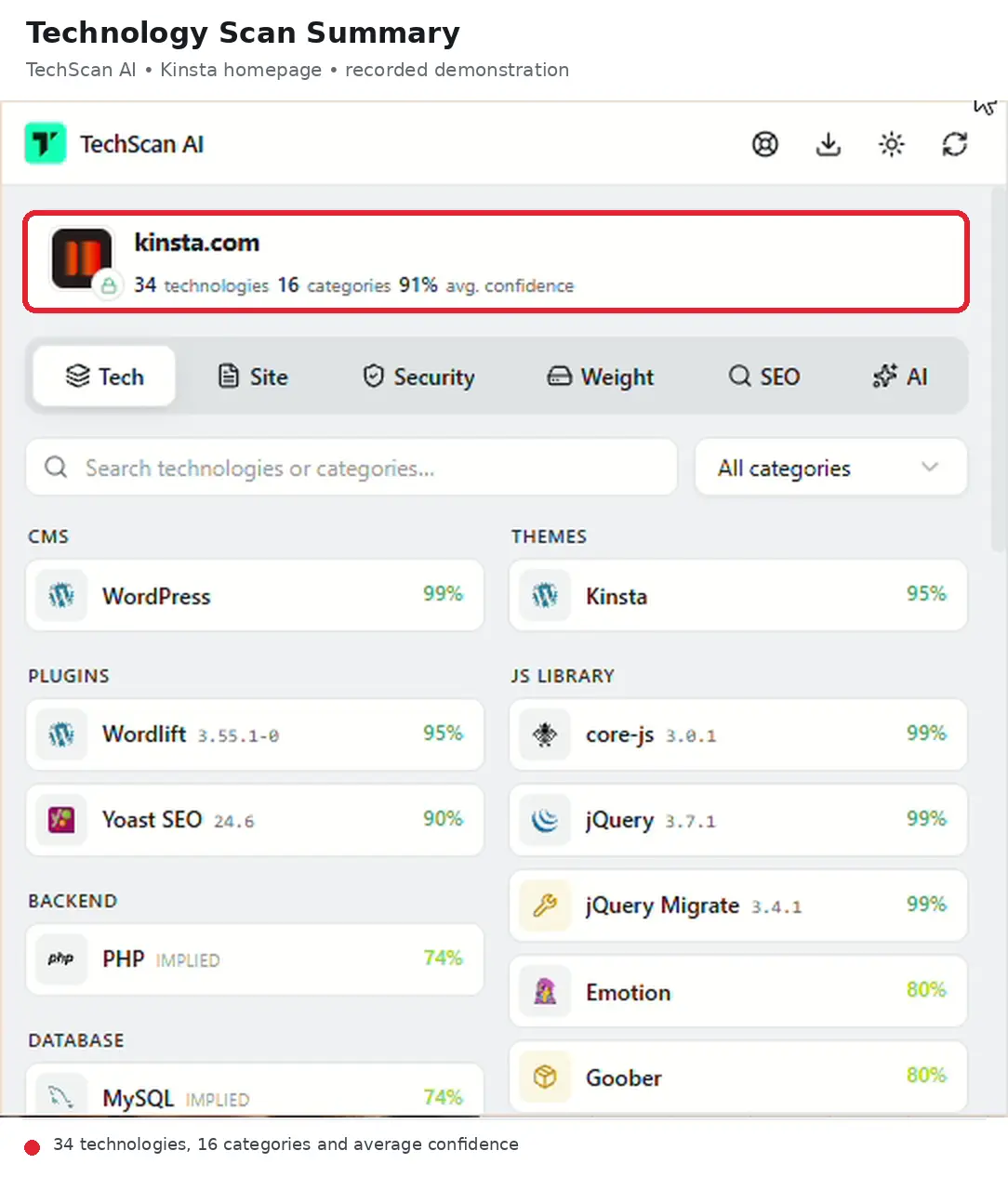
On Kinsta.com, TechScan AI identified 35 technologies across 17 categories with 91% average detection confidence. The results included WordPress, the Kinsta theme, Yoast SEO, WordLift, jQuery and analytics tools. It labeled PHP and MySQL as implied technologies.
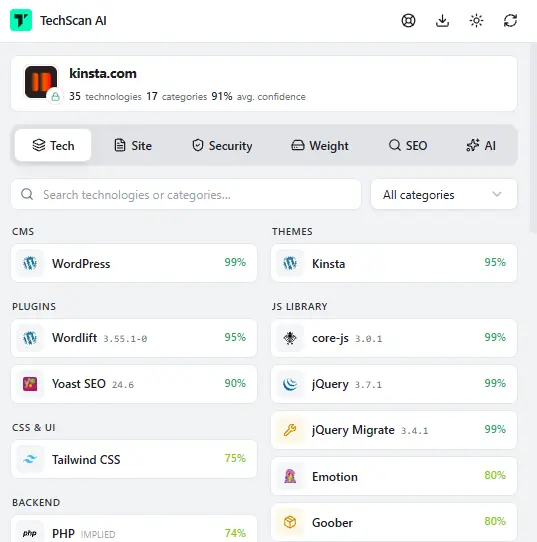
The same scan counted 143 requests in Weight and flagged 11 images without alt text among 62 checked in SEO. Those numbers describe the scanned page at that time and can change.
Who is TechScan AI for?
TechScan AI helps you understand a website without access to its admin dashboard.
Developers: Identify frameworks, JavaScript libraries, hosting signals and third-party services before investigating a site.
SEO specialists: Check titles, headings, canonical tags, indexability, schema and image alt text on the page you’re viewing.
WordPress and Shopify users: Discover themes and publicly detectable plugins or apps used by other sites.
Agencies and marketers: Research competitors or prospects, compare their technology choices and export findings for reports.
Website owners: Find security-header issues and heavy page resources to prioritize improvements.
Privacy and system requirements
TechScan AI analyzes page signals locally in Chrome and requires no TechScan AI account or API key. Optional AI runs on-device; normal requests to the website itself may still occur.
Core scanning needs Chrome 111+. Gemini Nano assistance needs desktop Chrome 138+, more than 4 GB GPU memory, about 22 GB free disk space and a one-time model download of roughly 2 GB. The Tech, Site, Security, Weight and SEO tabs work without it.
Conclusion: Is TechScan AI worth installing?
If you want to know “What is this website built with?” and run quick SEO, security and page-weight checks, TechScan AI is a useful first stop. It puts evidence-backed technology detection and page-level reports in a single Chrome popup.
Install TechScan AI from the Chrome Web Store and scan a website you know.